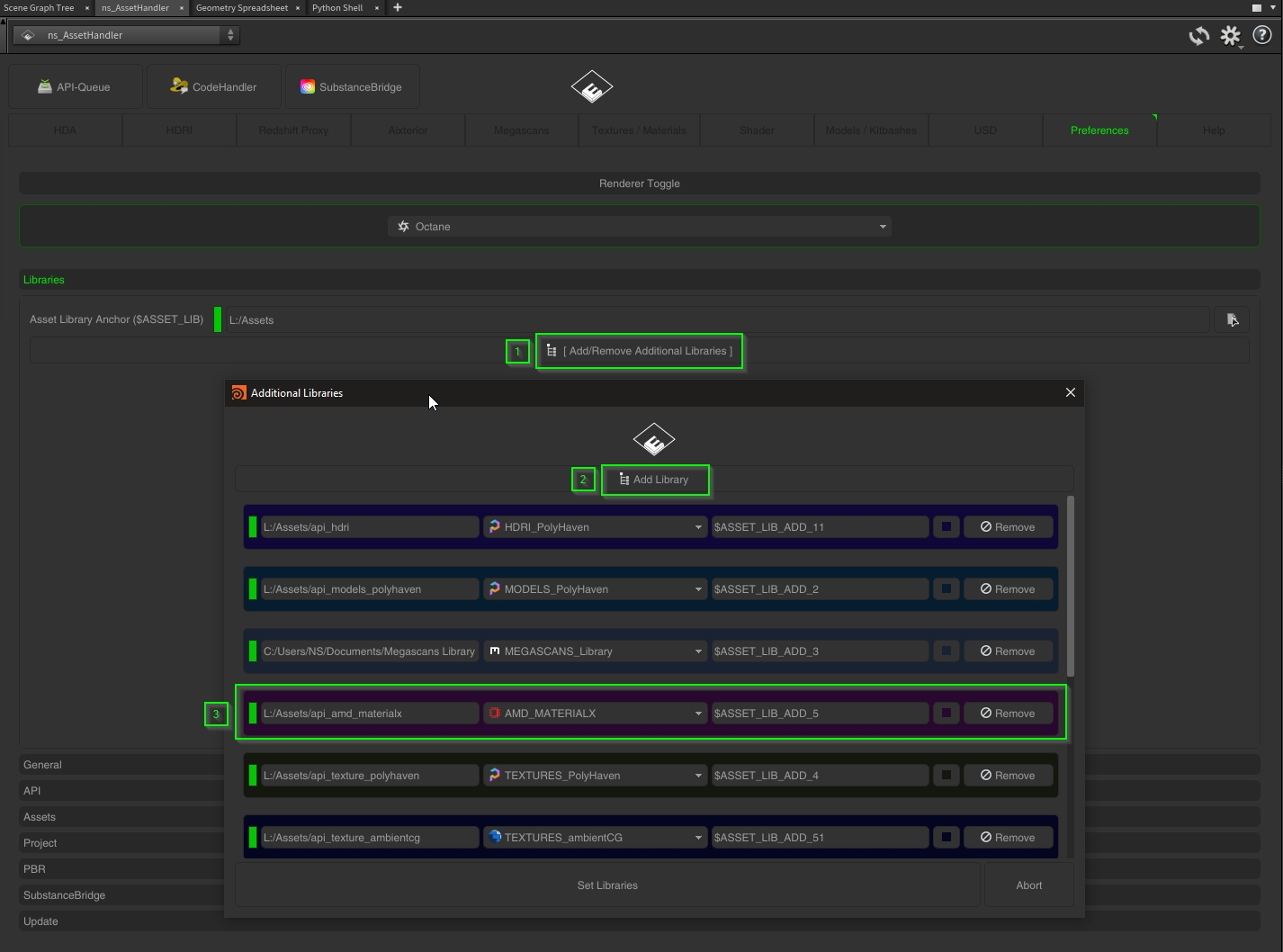
- Go to the Preferences tab.
- Add an additional library of type AMD_MATERIALX. The folder does not have to be in your main library, but do not mix it with other asset types.
- Press Set Libraries.

The library appears in the Textures / Materials tab and reads the sources and categories from the AMD API. Drag a MaterialX material directly into a LOP network, or right-click it and choose Add MaterialX as Reference (LOP Context).
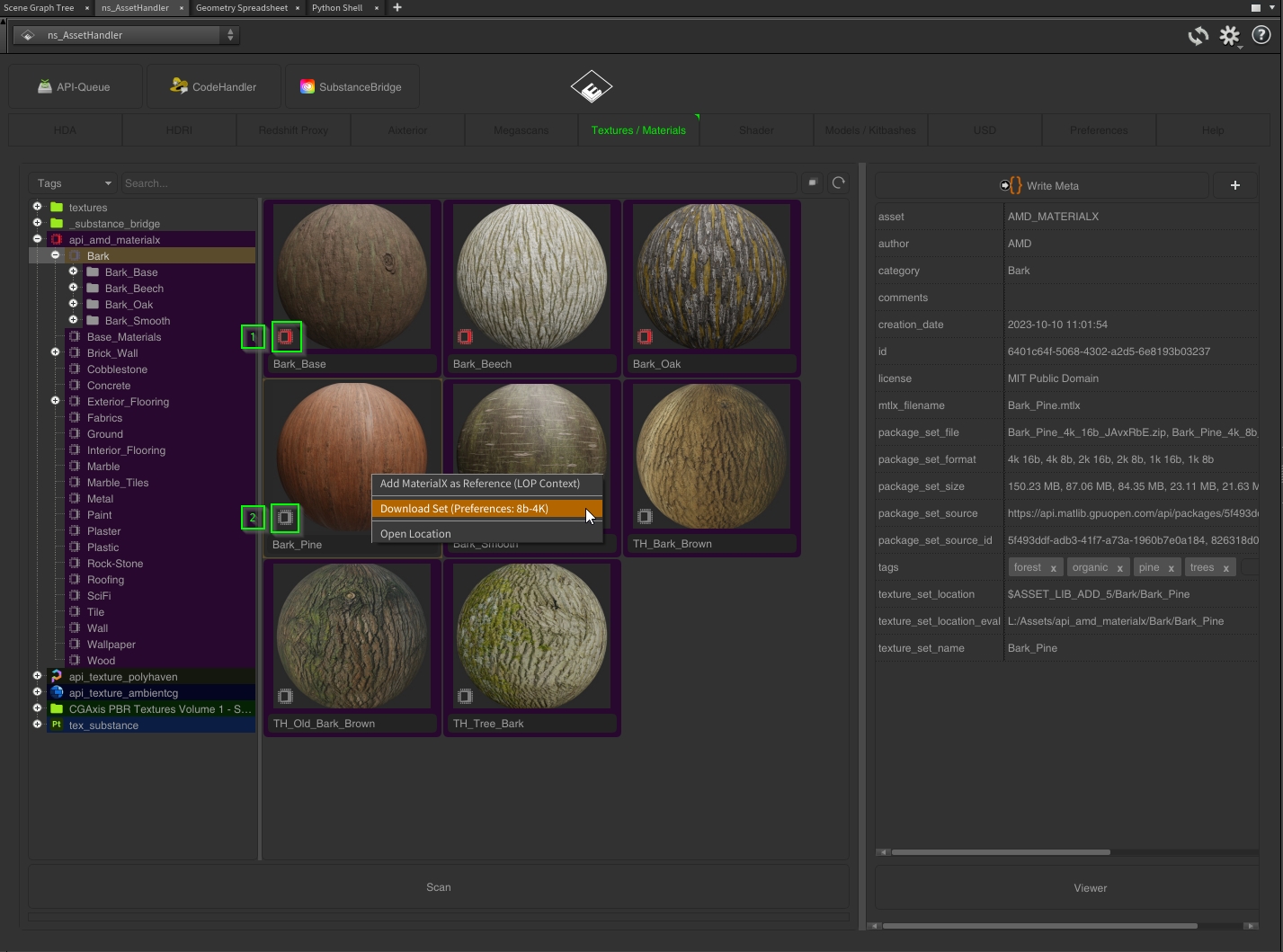
A red icon means the material is already in your library. A grey icon means it is added to the API-Queue when you use it: all files are downloaded and the material is placed afterwards. Download Set only downloads.

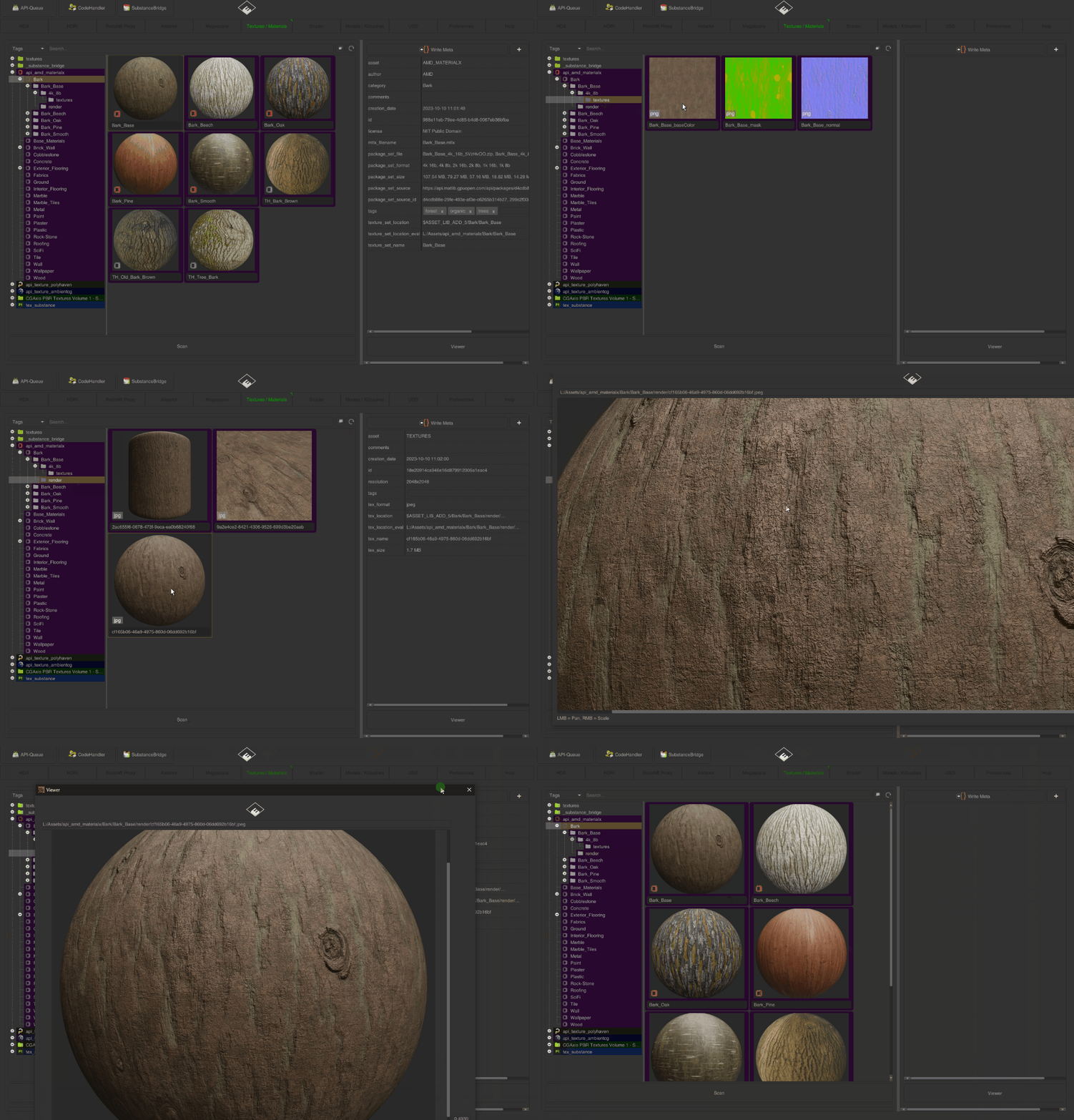
You can open the asset folder and see the package: the .mtlx file, the maps and the renders. You can place them in the allowed contexts or open them in the viewer.
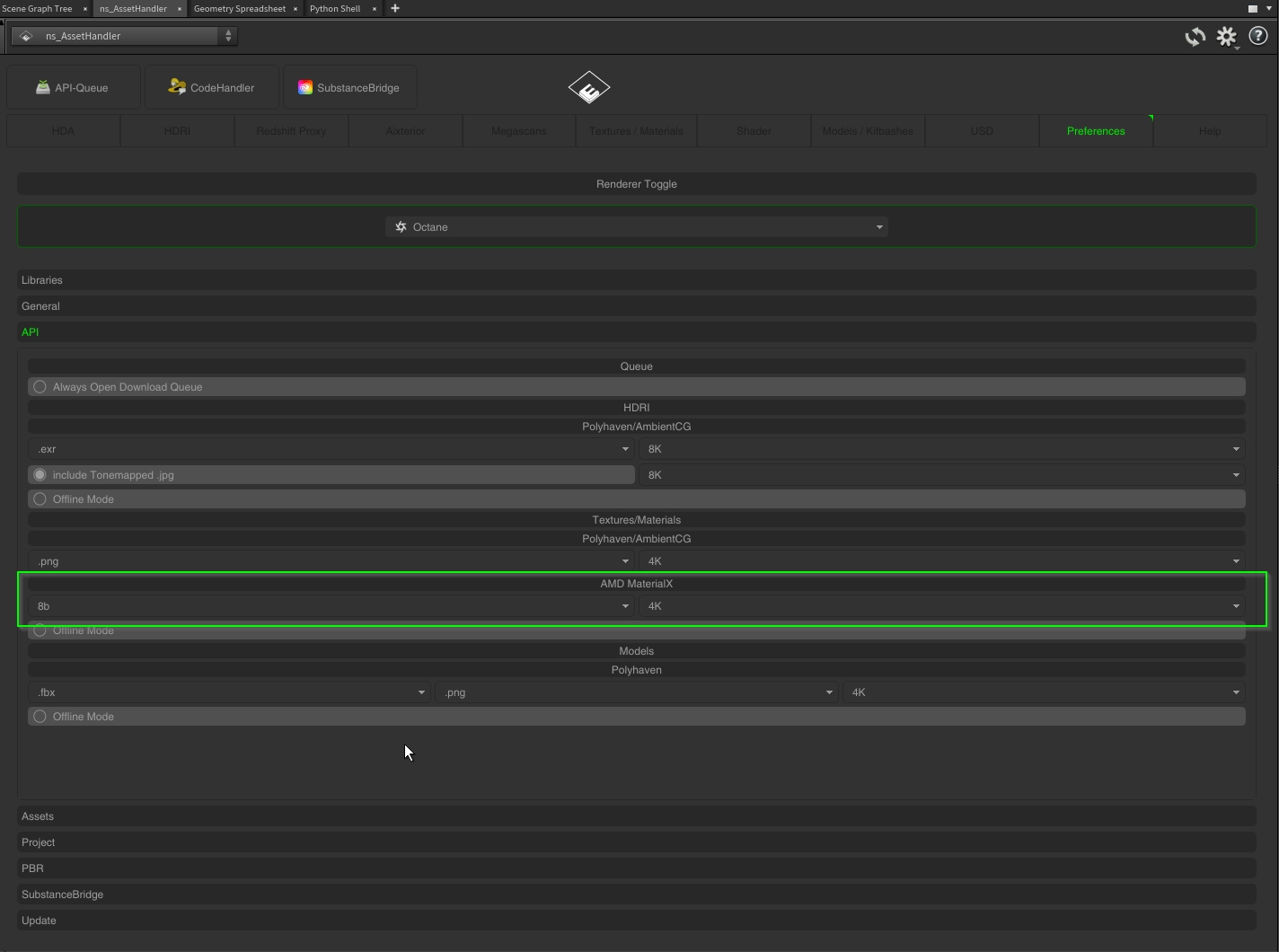
In Preferences > API > AMD MaterialX you choose the bit depth (8b, 16b) and the resolution (1K to 8K). The metadata shows which formats a material offers.