ASSH = AssetHandler
Video: quick overview (older version)
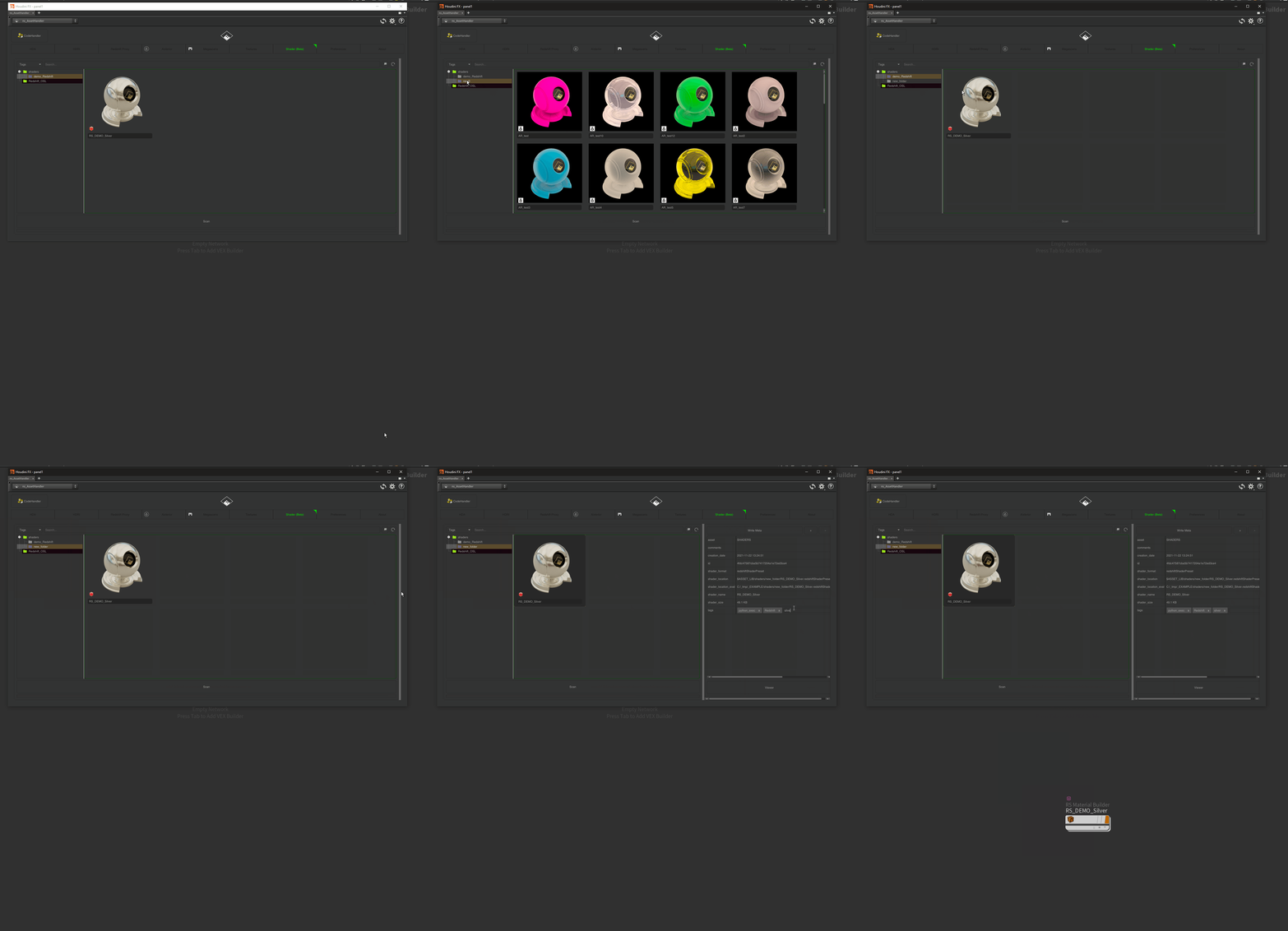
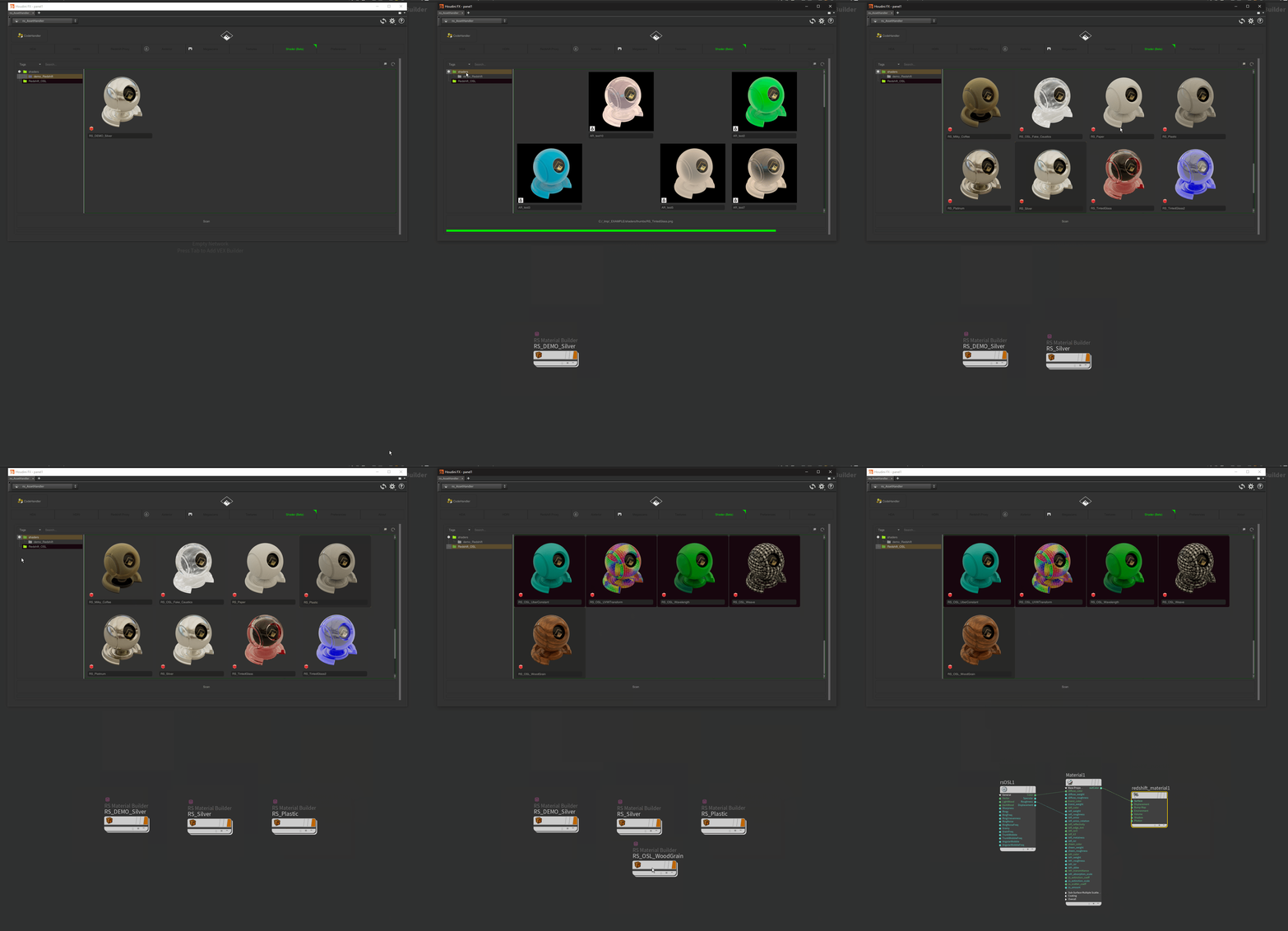
The Shader tab stores your materials as shader presets. When you add one, the ASSH renders a thumbnail on a preview object in the background with PDG/TOPs, for the renderer in the Renderer Toggle.
Add shaders
- Drag shader or Material Builder VOPs from a MAT network onto the Shader tab. You can drop several at once.
- Or right-click the VOPs and choose [ ns_AssetHandler ] > Add as Shader Preset to Library. This puts the preset into the root of the chosen library; for subfolders use drag and drop.

Karma/MaterialX materials have to be in a subnet (Karma Material Builder) to be stored as a preset.


The Houdini console shows what the render job does. You can keep working and switch folders meanwhile: the job stops and continues when you come back to the folder. While a library renders thumbnails, the ASSH places a .lockassh file there, so several artists can work with the same library without rendering twice.
Every preset stores the Houdini and renderer version in its metadata. Preferences > Assets > Shaders > Thumbnail Rendering switches the thumbnail rendering on or off.
Use shaders
- Add Shader (MAT Context): places the preset in the current material network
- Add Material (SOP Context): places it in a material network and assigns it to the selected SOP
- (Re)render Thumbnail renders the picture again, Delete Thumbnail removes it
- Delete Shader removes the preset from the library
Folders and metadata