ASSH = AssetHandler
All settings of the panel are in the Preferences tab, grouped into sections. They are stored in Preferences.json in your Houdini user folder; the library paths and the renderer can also come from the project (see Libraries).
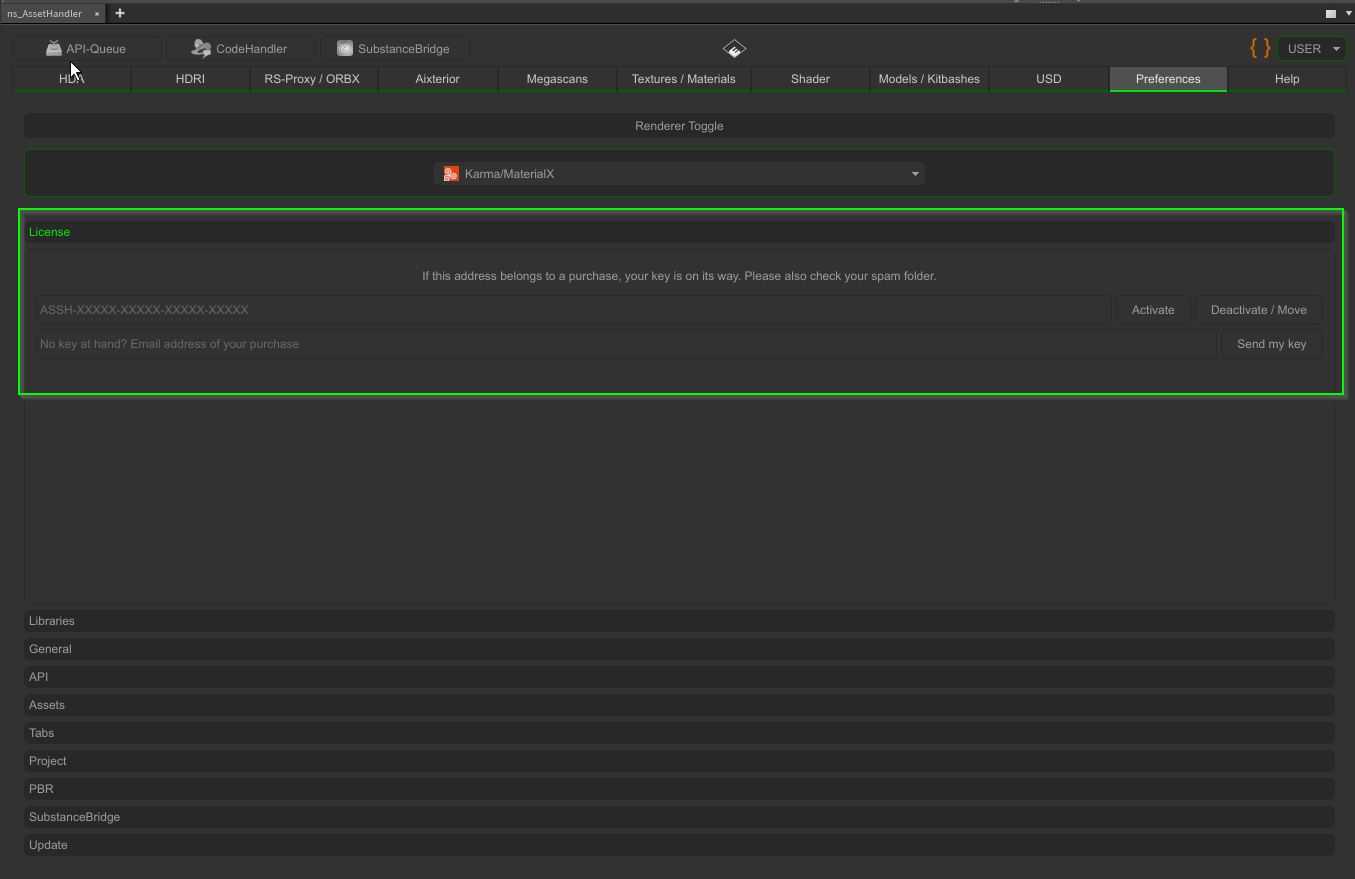
Renderer Toggle
Chooses the renderer for everything the ASSH creates: dome and environment lights, HDRI lights, auto. materials, shader thumbnails and USD setups. Options: Redshift, Mantra, Arnold, Renderman, Karma/MaterialX, Octane. Some HDAs, for example the Aixterior and Megascans HDAs, have their own renderer switch as well.

License
Since version 1.23.4 the panel requires a license key and a one-time activation per computer. An internet connection is needed once for the activation, afterwards the panel also works offline.
- Enter your key and press Activate.
- No key at hand? Enter the email address of your purchase and press Send my key. New customers get their key automatically by email after the purchase.
- Deactivate / Move removes the license from this computer. You can activate it again with your key. Each license works on up to two computers; Studio licenses bought earlier stay valid and unlimited.
- Studios can set the key with the environment variable
NS_ASSETHANDLER_LICENSE_KEY.
Libraries
- Asset Library Anchor ($ASSET_LIB): the main library
- [ Add/Remove Additional Libraries ]: more libraries per asset type
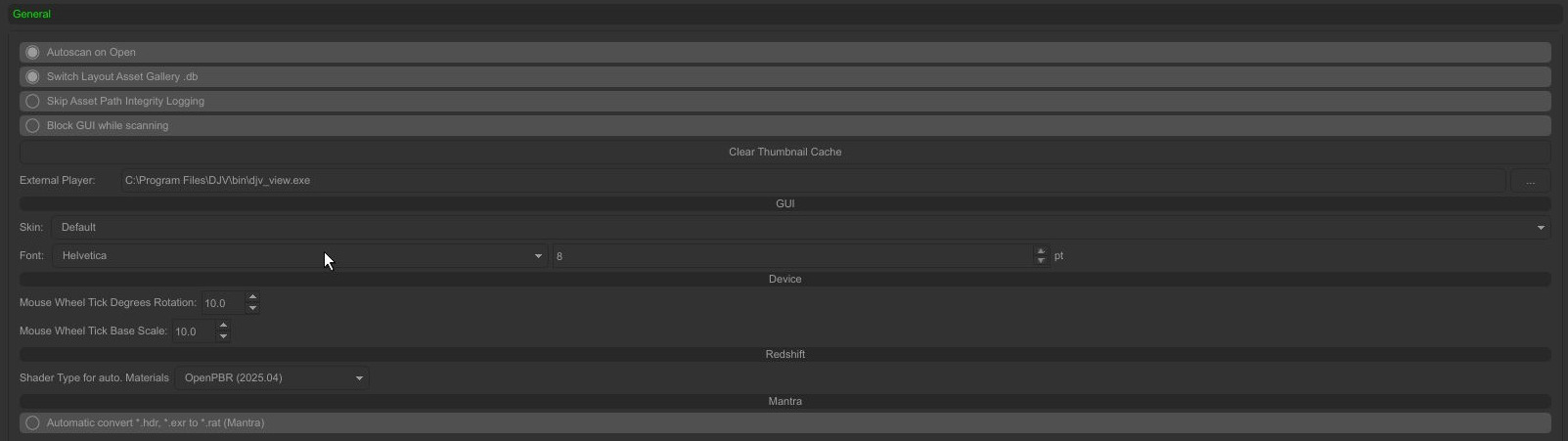
General
- Autoscan on Open: scan a tab the first time it is opened
- Switch Layout Asset Gallery .db: switches the database of the Houdini Layout Asset Gallery to the active tab. Useful with the Layout LOP.
- Skip Asset Path Integrity Logging: no console output for missing paths (on by default)
- Block GUI while scanning: locks tables and tabs during a scan (off by default)
- Clear Thumbnail Cache: deletes the local thumbnail cache
- External Player: a player for image sequences and videos, for example DJV
- GUI: skin (Default, Houdini, Dark), font and font size
- Device: rotation and scale per mouse wheel step for interactive placing
- Redshift > Shader Type for auto. Materials: OpenPBR (2025.04, default), Standard Shader (3.5.x) or Legacy Material Shader
- Mantra > Automatic convert *.hdr, *.exr to *.rat: creates
.ratfiles for HDRIs used with Mantra
API
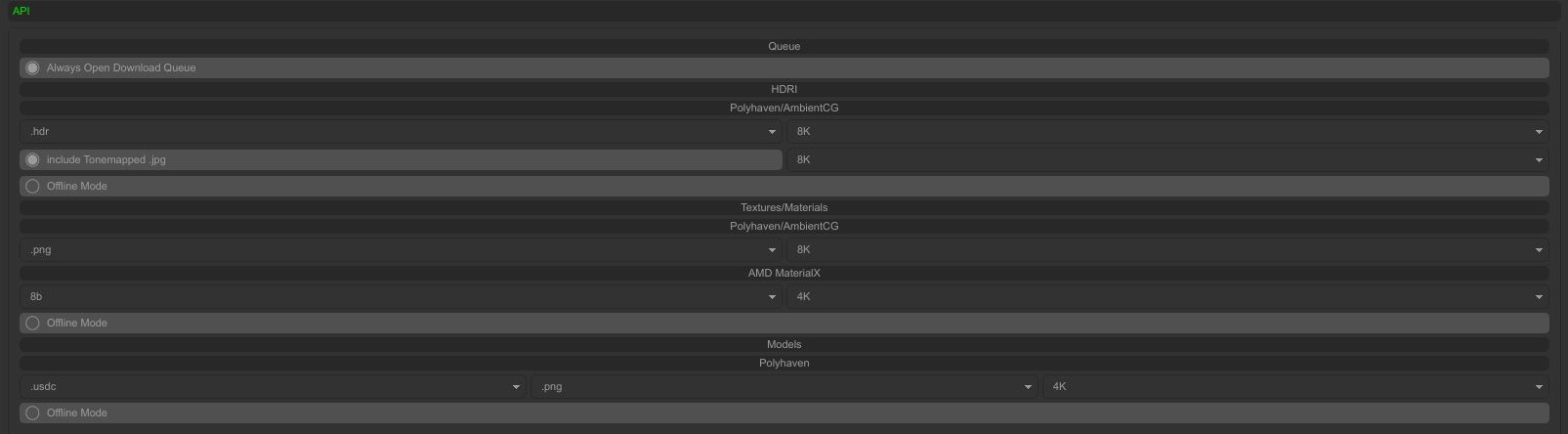
The download queue and the formats and sizes for the online libraries:
- Queue > Always Open Download Queue: opens the API queue with every download
- HDRI (PolyHaven/ambientCG): format (.exr, .hdr), size (1K to 16K), include Tonemapped .jpg (ambientCG only), Offline Mode
- Textures/Materials (PolyHaven/ambientCG): format (.png, .jpg, .exr) and size (1K to 8K), Offline Mode
- AMD MaterialX: bit depth (8b, 16b) and resolution (1K to 8K)
- Models (PolyHaven): model format (.fbx, .usdc), texture format (.exr, .png, .jpg), size (1K to 8K), Offline Mode
Offline Mode shows the assets you have already downloaded without asking the API.
Assets
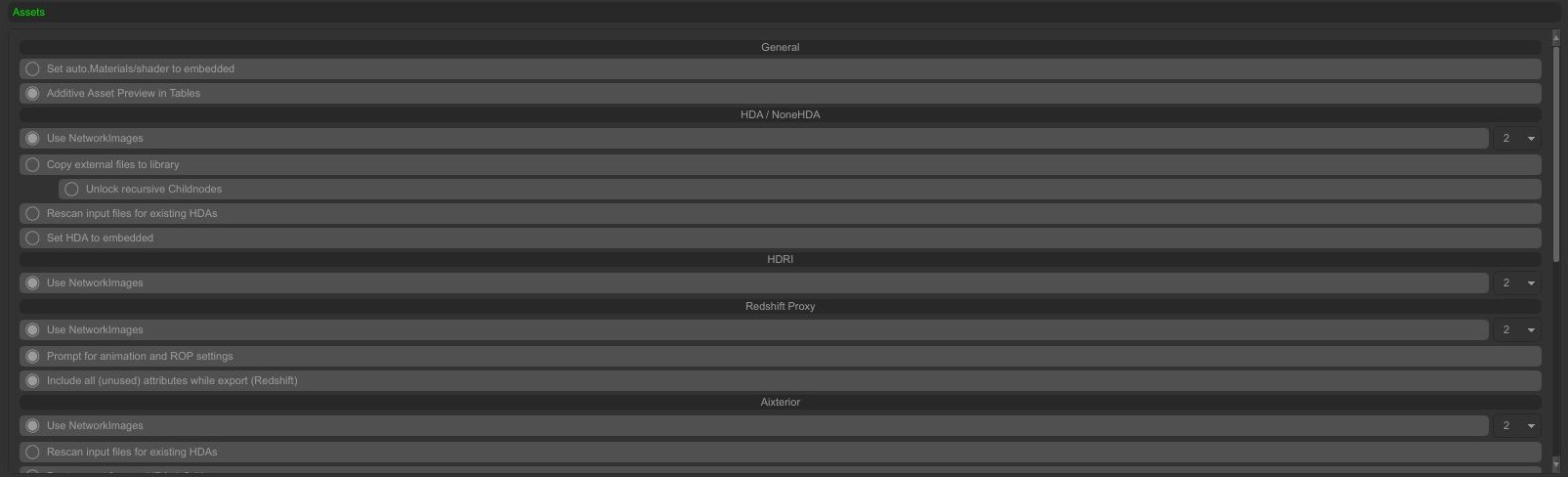
Options per asset type:
- General > Set auto.Materials/shader to embedded: embeds the auto. material HDAs into the scene
- General > Additive Asset Preview in Tables: shows every asset as soon as it is scanned instead of after the whole folder
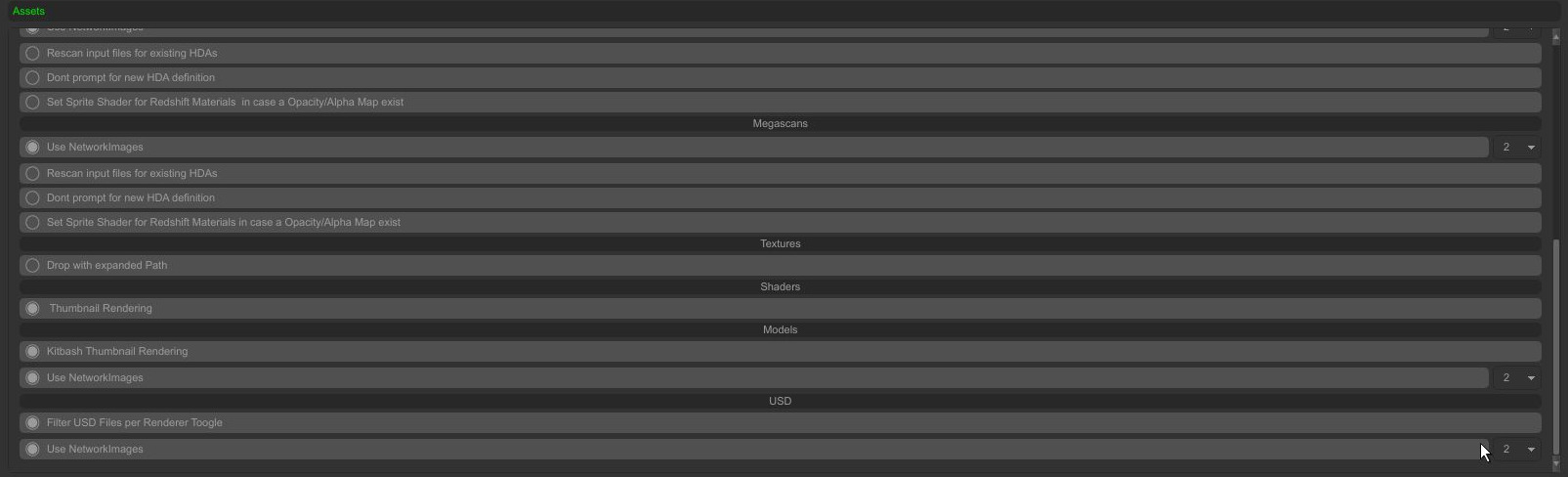
- HDA / NoneHDA: NetworkImages, Copy external files to library (copies all input files of the node into the asset folder and uses the library variable), Unlock recursive Childnodes (helps when copying fails because of locked HDAs), Rescan input files for existing HDAs, Set HDA to embedded
- HDRI: NetworkImages
- Redshift Proxy: NetworkImages, Prompt for animation and ROP settings, Include all (unused) attributes while export (Redshift)
- Aixterior / Megascans: NetworkImages, Rescan input files for existing HDAs, Dont prompt for new HDA definition, Set Sprite Shader for Redshift Materials in case a Opacity/Alpha Map exist
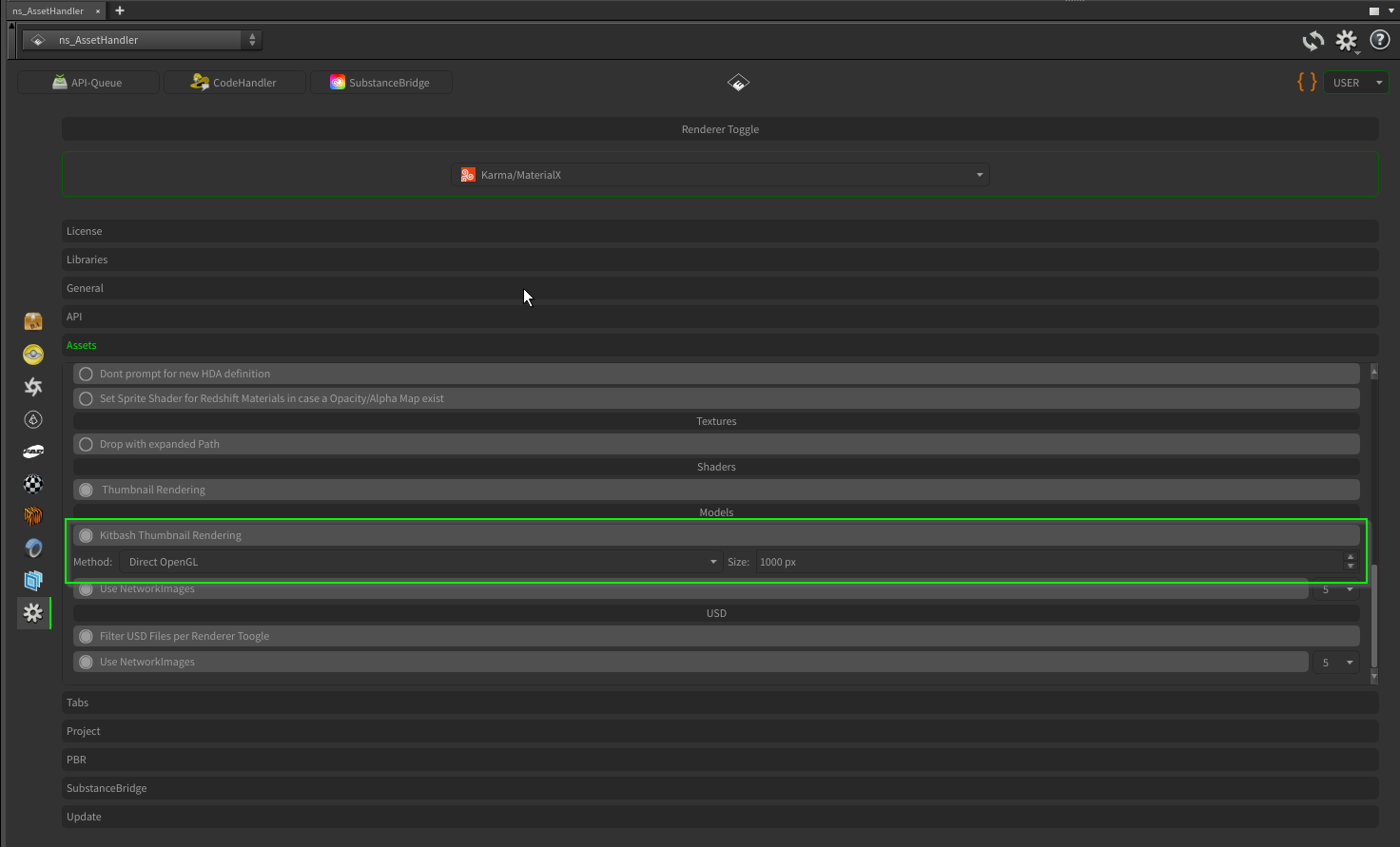
- Textures > Drop with expanded Path: writes the full path instead of
$ASSET_LIB... - Shaders > Thumbnail Rendering: renders shader thumbnails with PDG
- Models > Kitbash Thumbnail Rendering and NetworkImages. Since version 1.23.5 Method chooses Direct OpenGL (fast, gray with wireframe) or the OpenGL TOP (the viewport look) and Size sets the thumbnail size.
- USD > Filter USD Files per Renderer Toogle: hides USD assets made for another renderer, and NetworkImages
Tabs
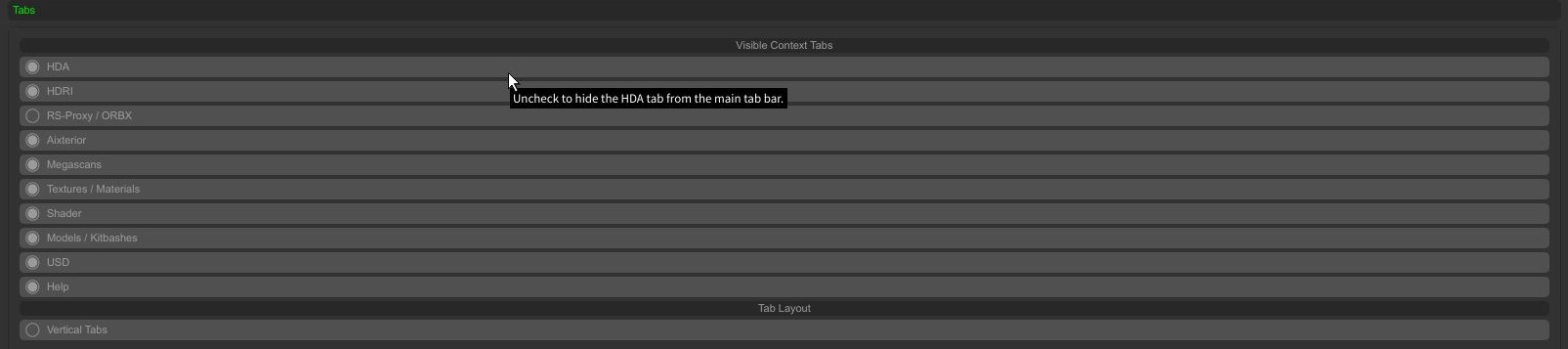
- Visible Context Tabs: hide the tabs you do not need
- Tab Layout > Vertical Tabs: places the tabs on the side
Project
Project based library paths with $JOB, see Libraries.
PBR
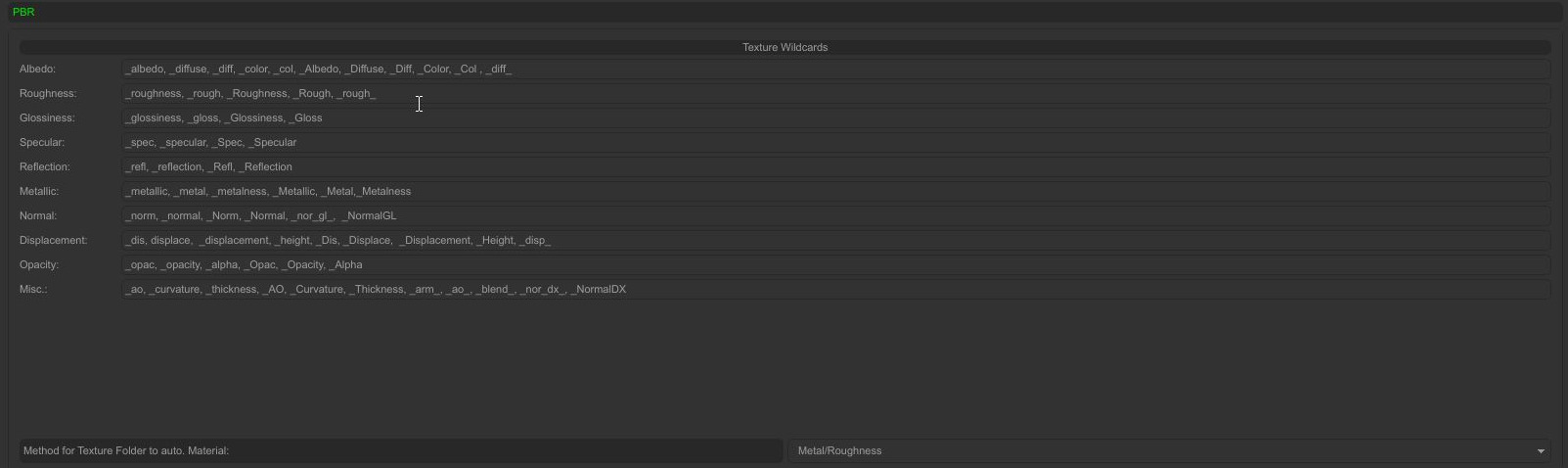
Texture Wildcards tell the ASSH which file belongs to which material input when it builds an auto. material from a texture folder. Every input has a list of name parts, for example _albedo, _diffuse, _diff, _color, _col for albedo. Add your own naming here. Inputs: Albedo, Roughness, Glossiness, Specular, Reflection, Metallic, Normal, Displacement, Opacity and Misc. (AO, curvature, thickness). The material model is Metal/Roughness.
SubstanceBridge
Paths to Substance Painter and Designer and the install buttons for their scripts, see SubstanceBridge Installation. Windows only.
Update
- Check On Startup: looks for a new version when the panel opens
- Changelog Latest Version: shows what is new
- Backup Current Version Before Update: saves the installed version as a .zip first
- Download / Update: downloads and installs the new version
An update replaces the files in the ASSH folder. Copy your Python Post Place Scripts and changed HDAs before you update.