ASSH = AssetHandler
Smaller tools that come with the ASSH. Most of them are in the right-click menu [ ns_AssetHandler ] of the Network View or on the ns_AssetHandler shelf.
Asset Path Editor (APE)
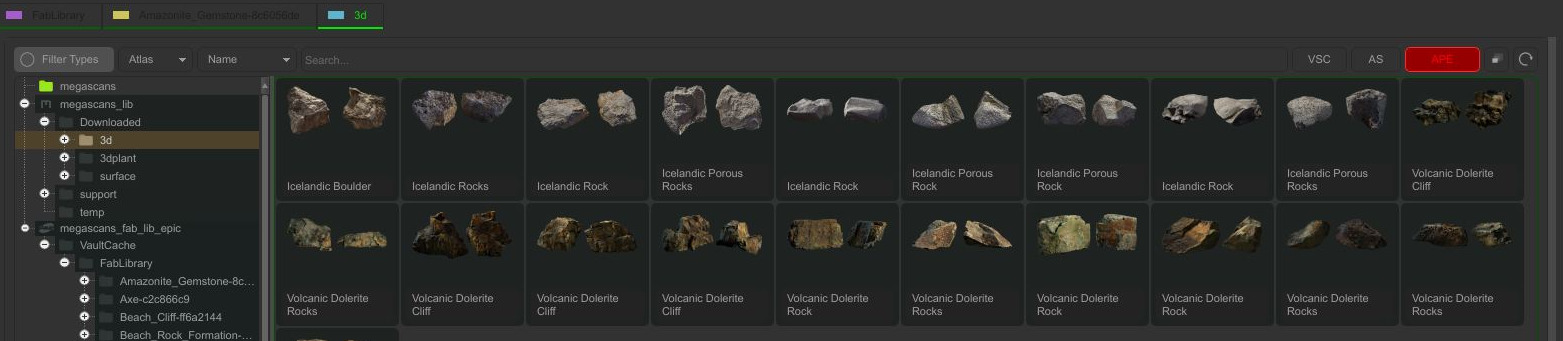
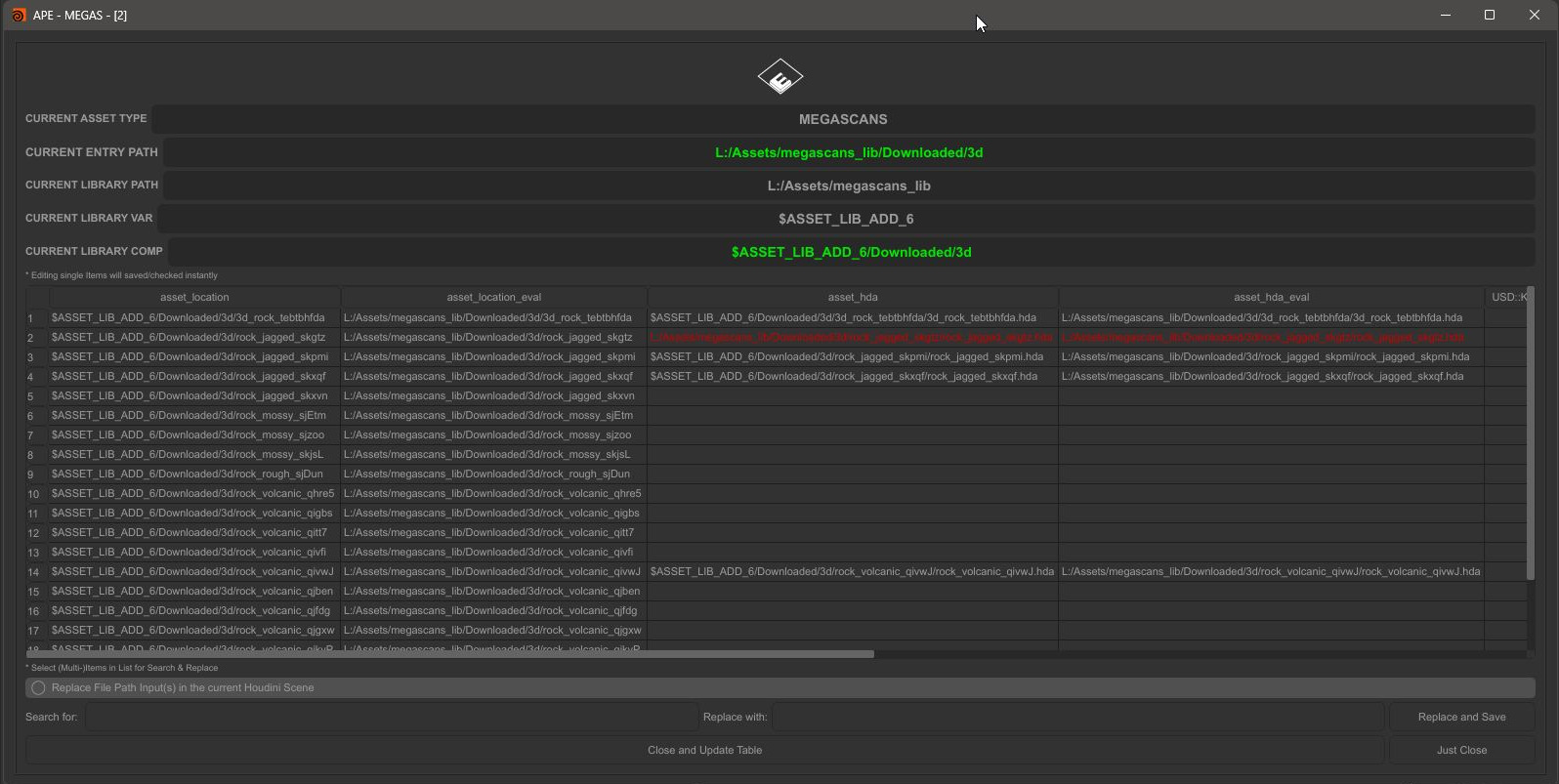
The APE button above the asset table opens all file paths stored in the metadata of the current folder in one table. Paths that do not exist are red, and the button itself turns red when a scan finds one. The header shows the asset type, the library variable, the library path and the path as it is written with the variable.
- Edit a single cell: it is saved and checked at once.
- Select several cells, enter Search for and Replace with and press Replace and Save, for example after you moved a library to another drive.
- Replace File Path Input(s) in the current Houdini Scene changes the same paths in the open scene as well.
- Close and Update Table closes the editor and reloads the table, Just Close only closes.
APE is available in every context tab.
Isolate Selection
Shelf tool or right-click in OBJ: shows only the selected objects in the viewport. Without a selection it asks you to select objects in the viewport. Clear Selection brings back the visibility of all objects.
Copy external files to $JOB
Shelf tool. Copies all files the scene reads (textures, caches, geometry) to $JOB/__ns_GatheredFiles and changes the paths. Save the hip file first.
Remove chs and eval Parm Inputs
Shelf tool and right-click in MAT. For material HDAs in a material network: embeds the HDA and replaces all channel references and expressions with their current values, also in the child nodes. Use it to make an auto. material independent from the asset it came from.
Add PBR OGL-Tags
Right-click a material VOP in MAT and choose [ ns_AssetHandler ] > Add PBR OGL-Tags. It adds the OpenGL parameters (ogl_*) to the material, so the viewport can show its texture maps.
PubChem 2D and 3D
ns_pubchem_2d.hda and ns_pubchem_3d.hda (SOP) read compound files from PubChem and build the molecule: the 2D Structure or the 3D Conformer JSON. Options: PubChem colours (reference Wikipedia) or a colour seed, bond offset and pscale multiplier.
ID Map Maker
ns_ID_map_maker.hda (SOP) creates ID maps for Substance Painter, also for UDIMs (automatic UDIM detection, tile size). The IDs come from an attribute or from a point distribution with relax iterations and a distance threshold. It renders the maps with a TOP network at the resolution you choose.
Viewport scatter and placing
OBJ Placeing ViewHandle on the shelf places selected objects again with the mouse, see Interactive Placing.