ASSH = AssetHandler
Video: quick overview (older version)
The USD tab creates USD files from your scene and gives you access to the USD assets in your libraries.
Create USD assets
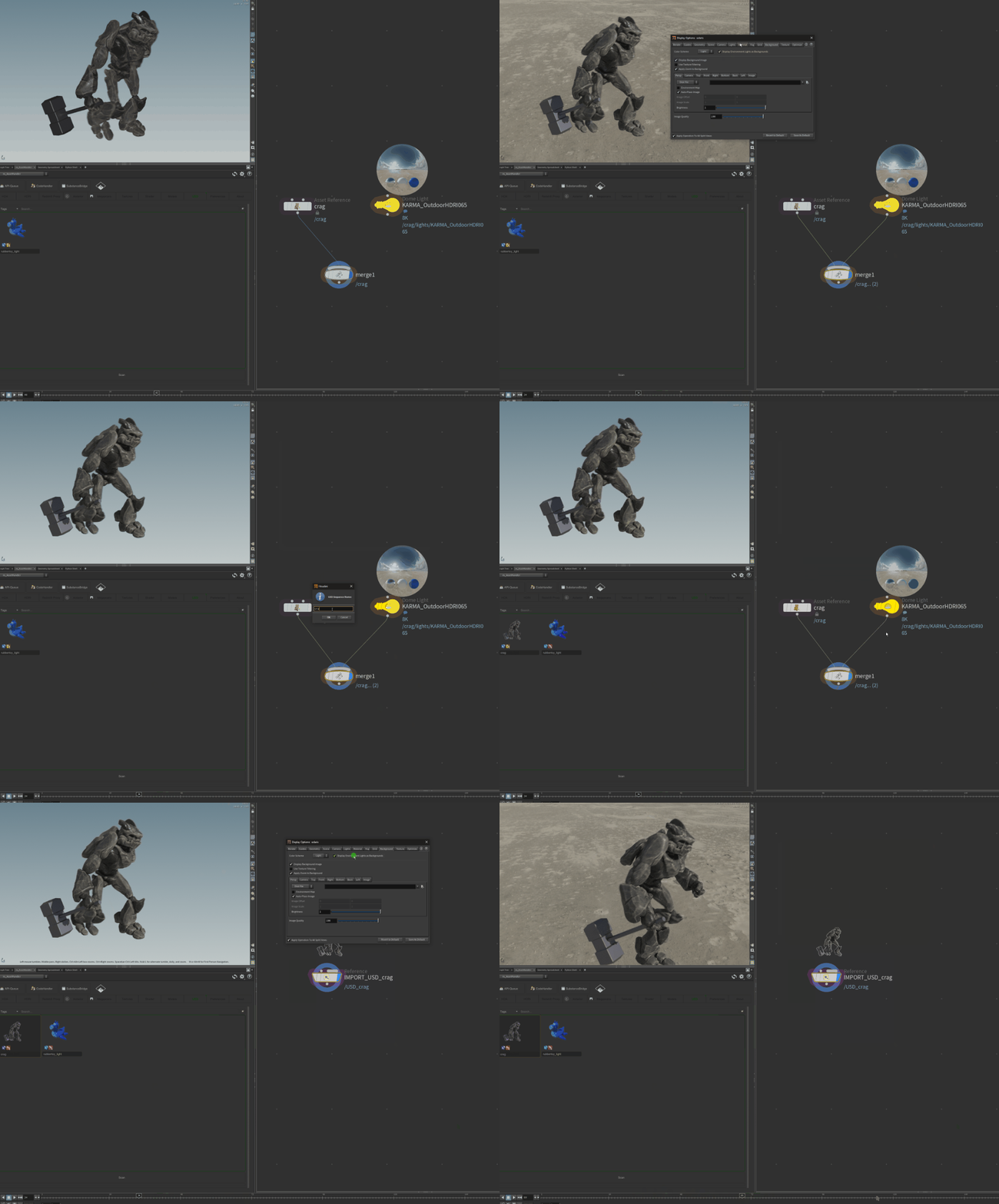
- Right-click a LOP node and choose [ ns_AssetHandler ] > Add LOP to USD Library, or drop the LOP onto the tab.
- Right-click a SOP node and choose Add SOP geometry to USD Library. OBJ and SOP geometry can be stored as USD as well.
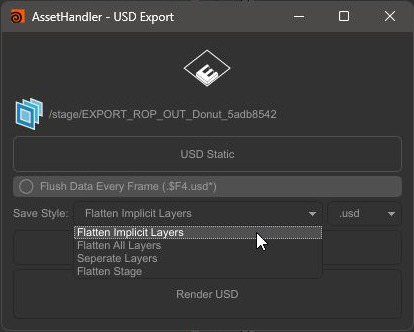
The USD Export dialog asks for a single file or a sequence (frame range), Flush Data Every Frame (.$F4.usd*), the Save Style (Flatten Implicit Layers, Flatten All Layers, Separate Layers, Flatten Stage) and the format (.usd, .usda, .usdc).
Use USD assets
| Option | What it does |
|---|---|
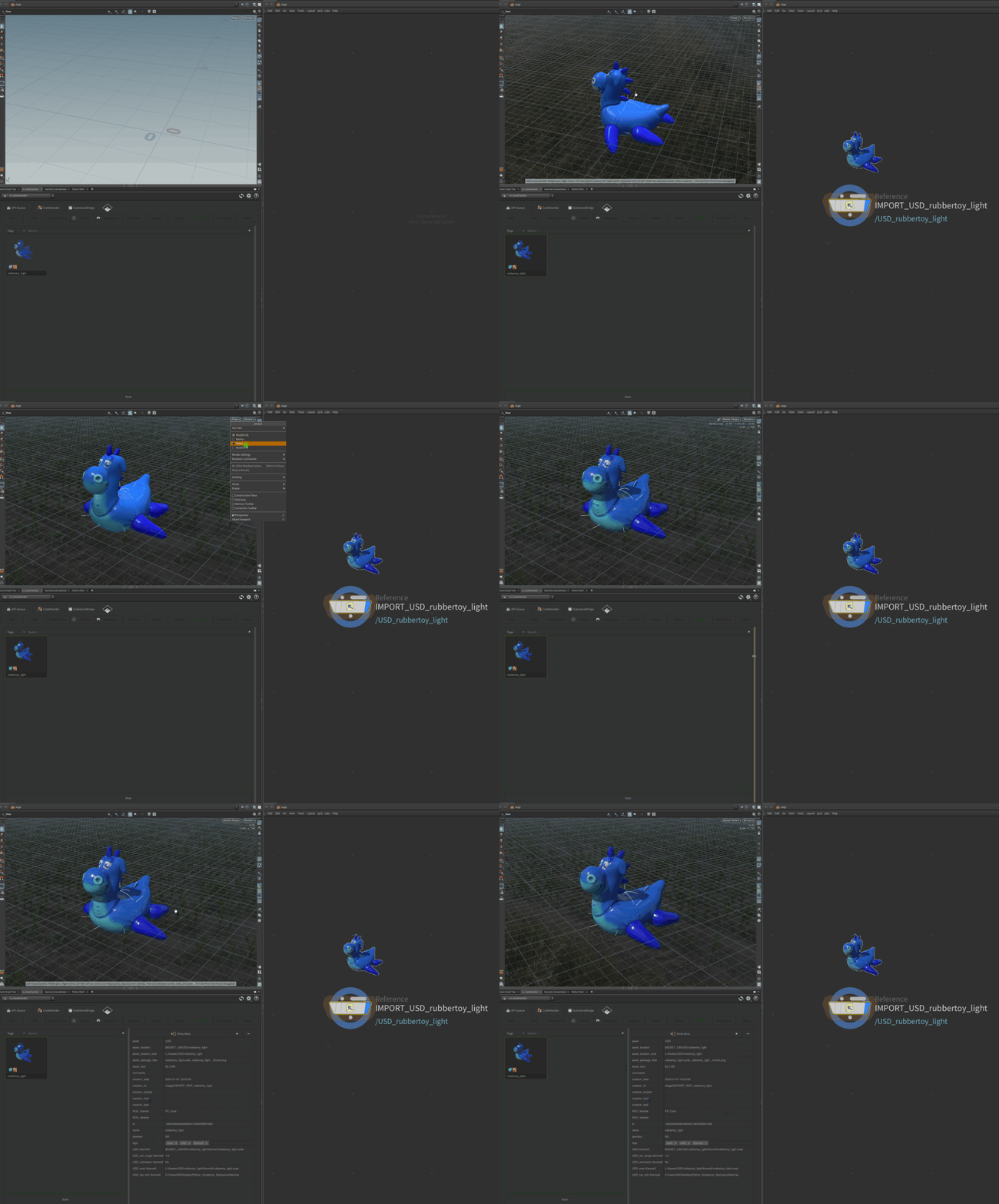
| Add (LOP/Stage Context) | References the asset in the stage |
| Add (SOP Context) | Loads it as geometry |
| Add USD entry in Layout Asset Gallery | Adds it to the Houdini Layout Asset Gallery |
| Replace Thumbnail, Viewer, USDView | Thumbnail and preview |
| Delete USD Package | Deletes the asset from the library |
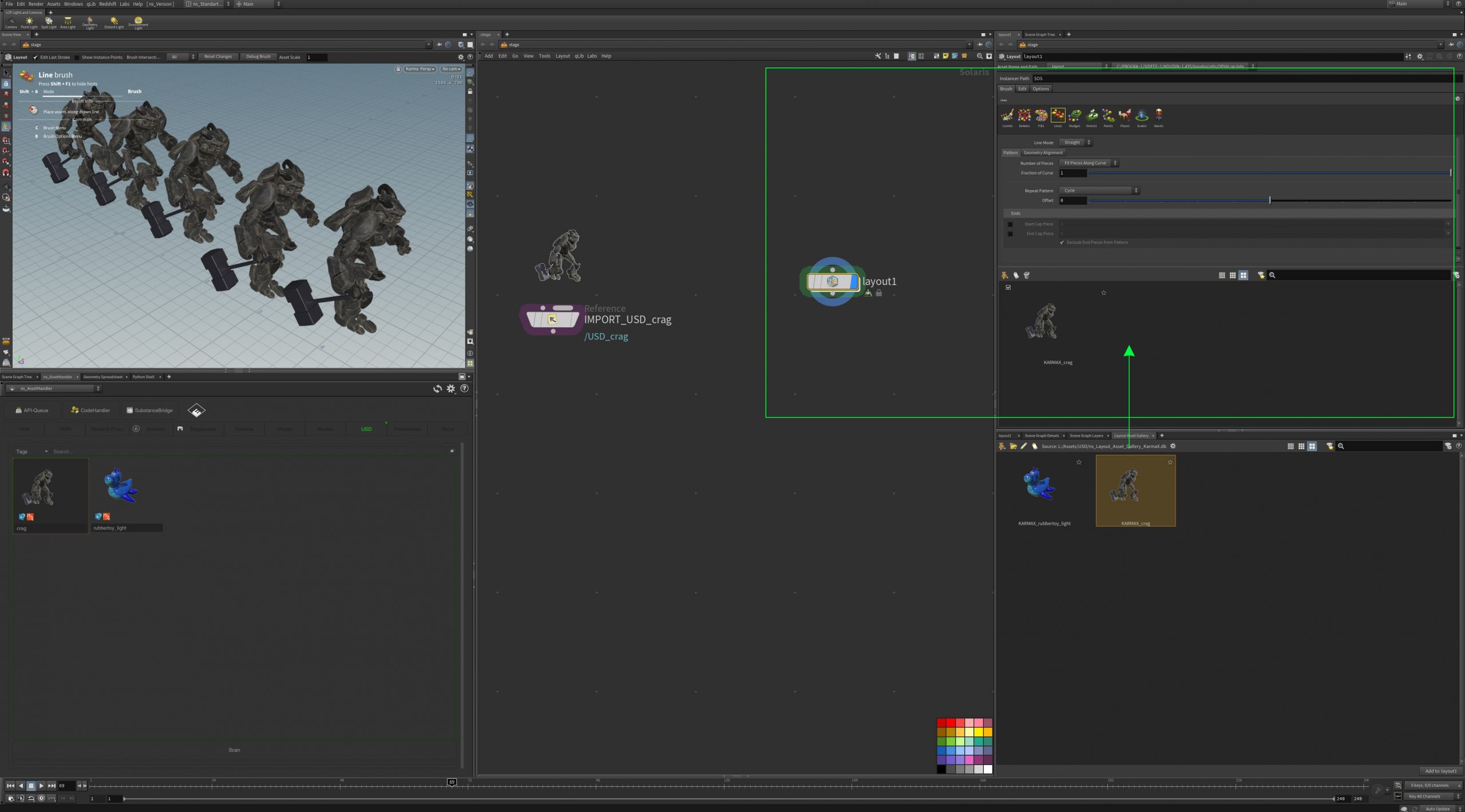
Layout Asset Gallery
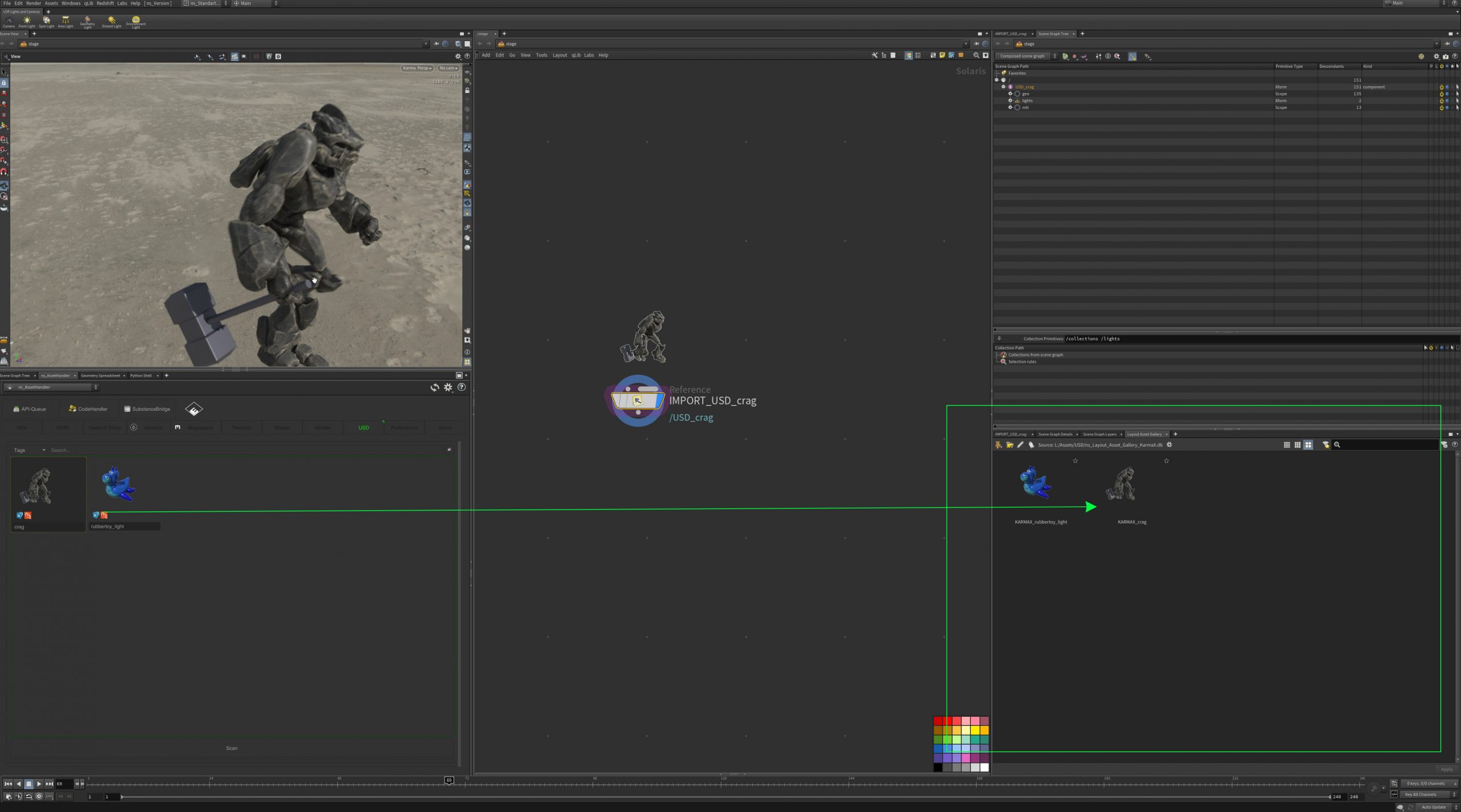
With Preferences > General > Switch Layout Asset Gallery .db the ASSH switches the database of the Houdini Layout Asset Gallery to the active tab. The database is stored in the library. This is useful for scattering and placing USD assets with the Layout LOP.
Renderer
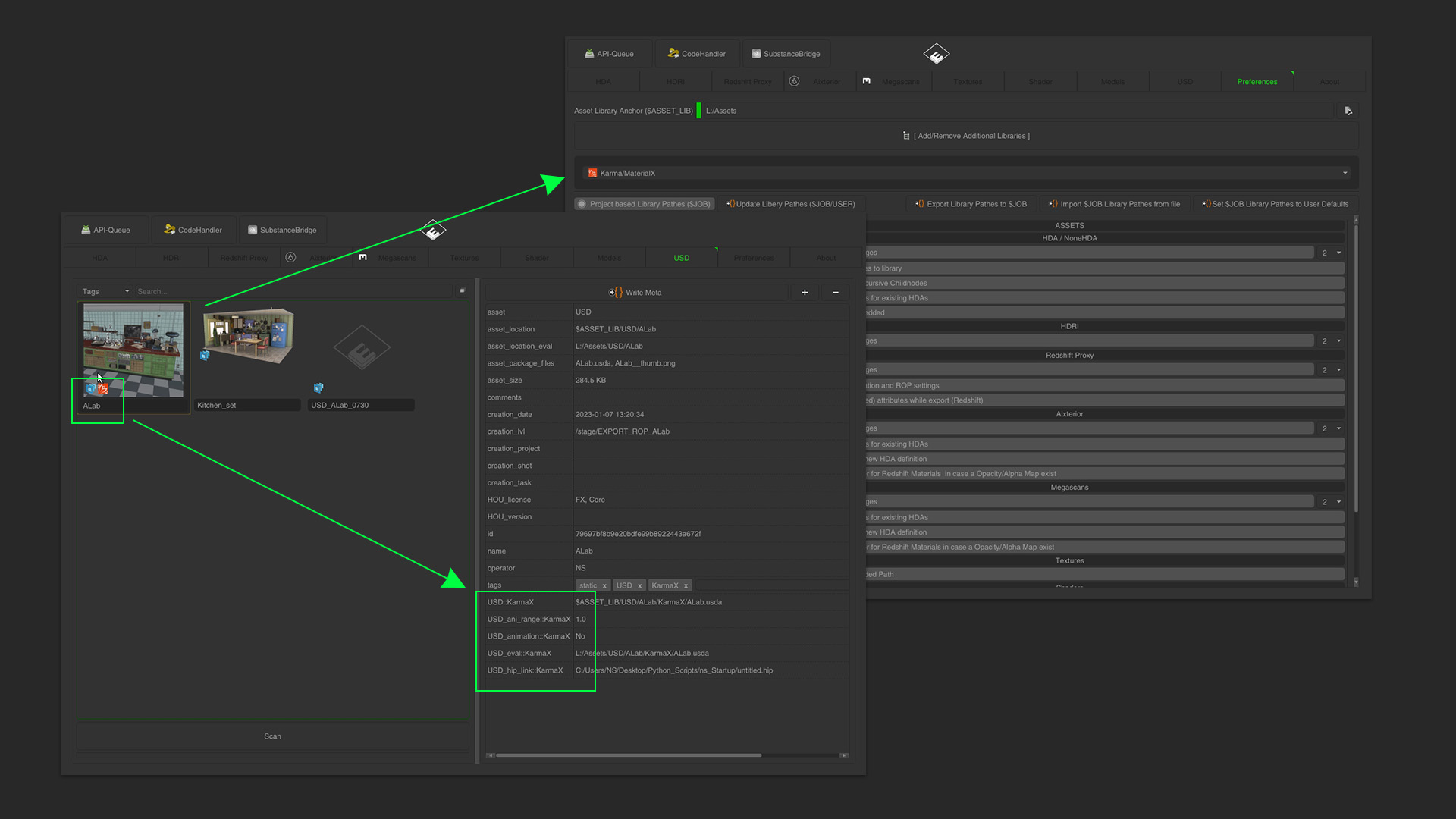
The Renderer Toggle decides the render delegate for the USD files the ASSH creates (Karma, Redshift, Arnold, RenderMan, Octane). The table shows an indicator icon and the metadata stores the renderer. Preferences > Assets > USD > Filter USD Files per Renderer Toogle hides assets made for another renderer.
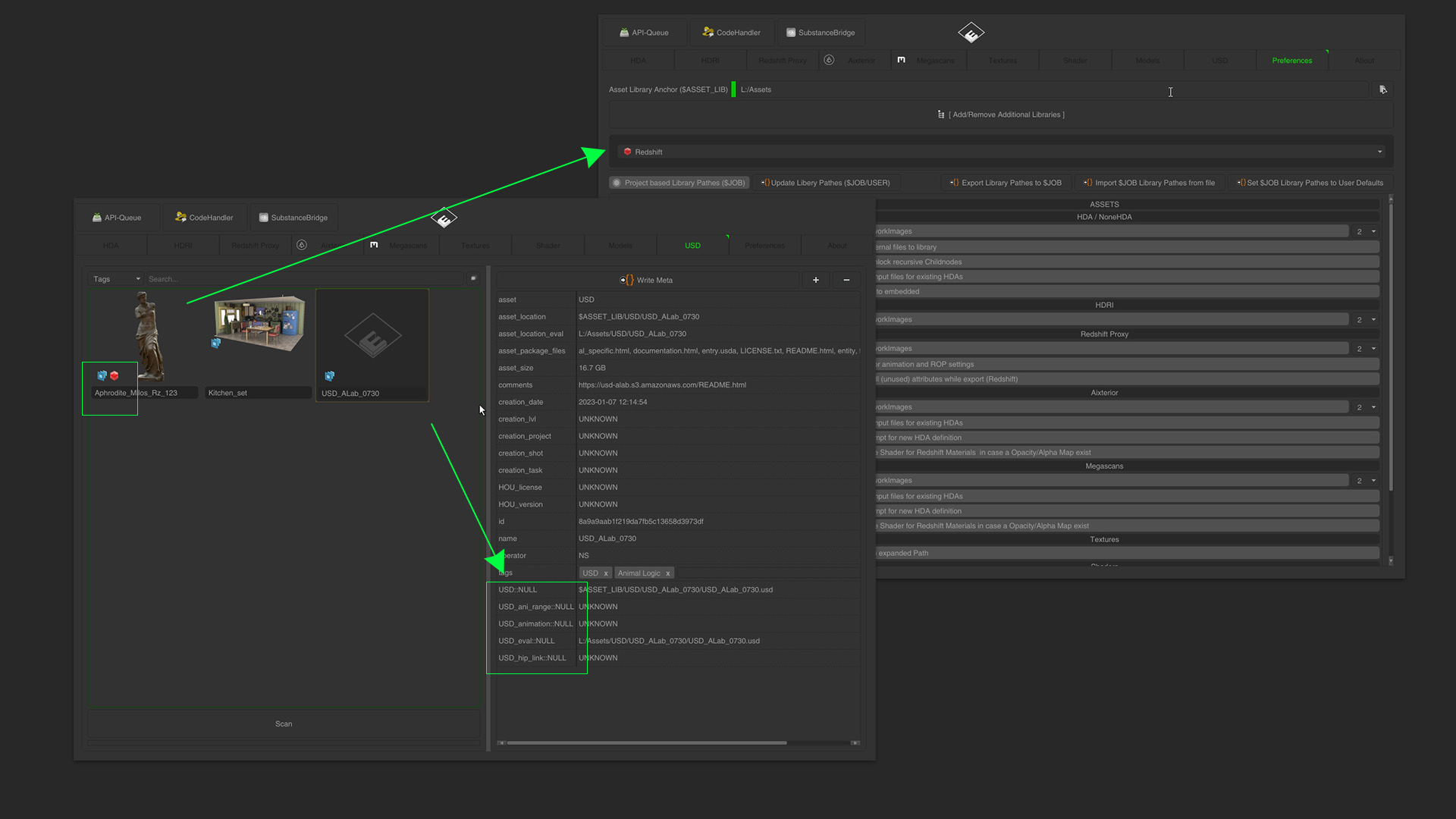
USD packages from other sources work as well. They show the USD logo without renderer icon and NULL as renderer in the metadata.
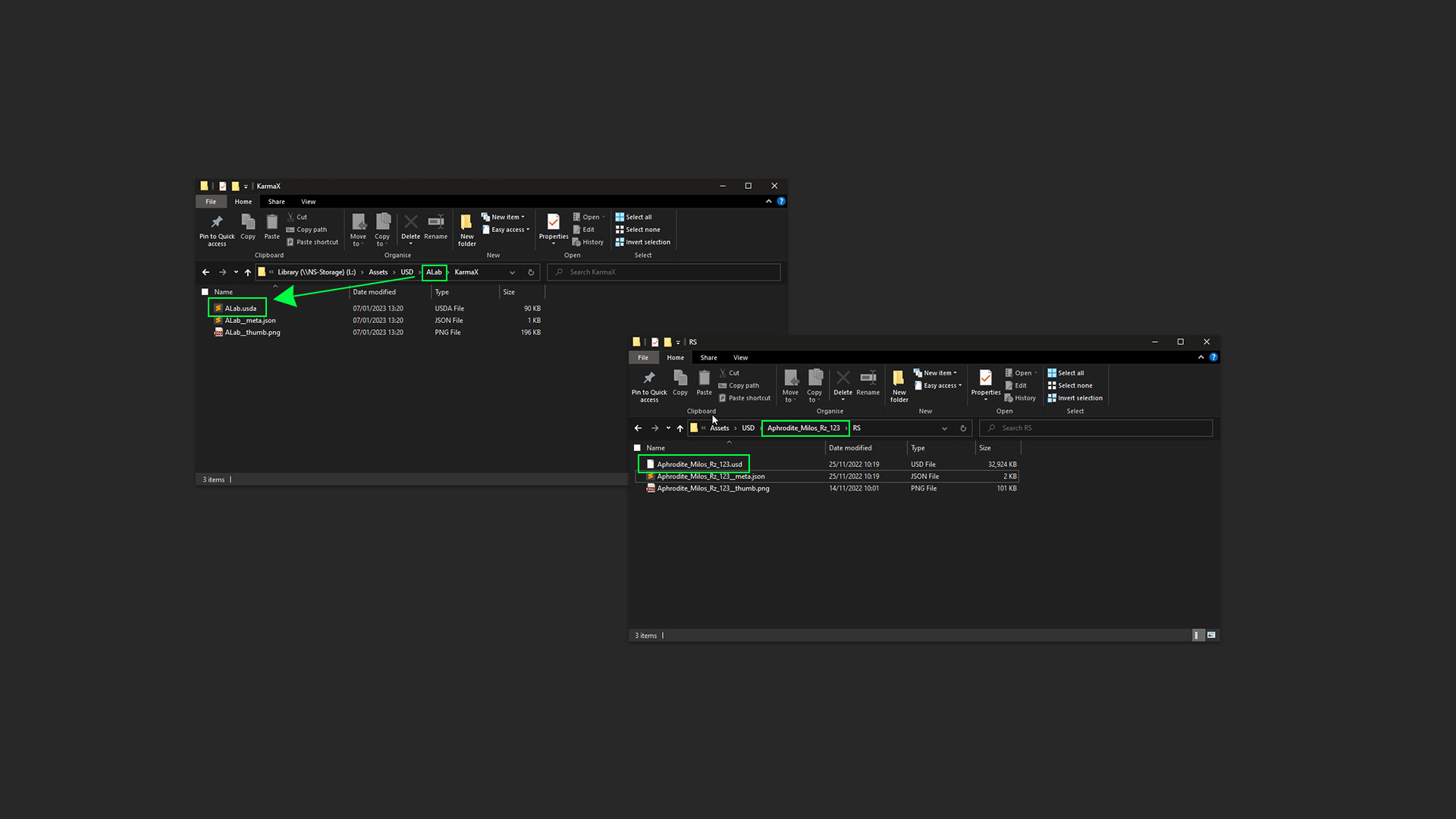
If you add USD packages yourself, give the main layer file the same name as its folder, otherwise the ASSH does not find it.
Build Basic LOP Asset Setup
Right-click a LOP node and choose [ ns_AssetHandler ] > Build Basic LOP Asset Setup. The ASSH builds a small asset network behind it: a reduced proxy geometry (ns_create_proxy), proxy and render purposes, a Material Library and the material assignment.
USD in the other tabs
